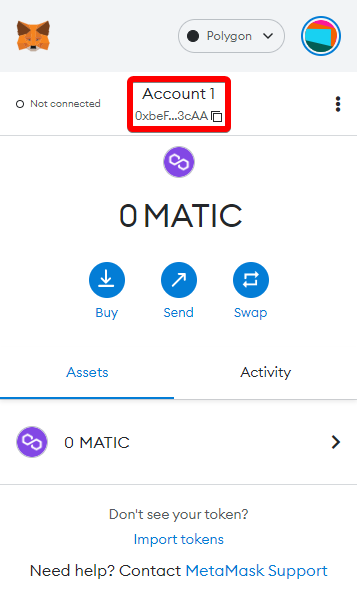
One thing to note is that the Polygon network was formerly known as the Matic network, and matic is still the name of the network`s native token.
Steps to connect MetaMask to Polygon
1. Open and log in to your MetaMask wallet
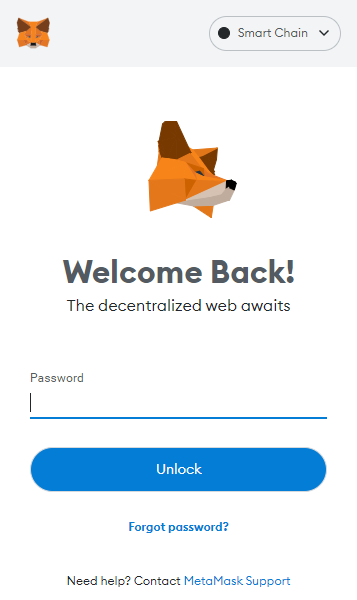
login(metamask)
2. From the account options on the circular icon, go to Settings.
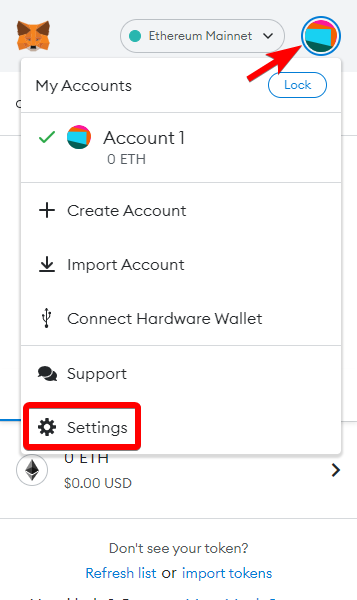
set(metamask)
3. Once in the settings, select "Network".
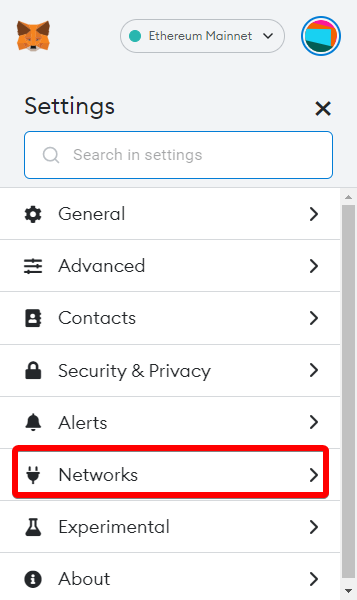
Network Settings (MetaMask)
4. Press the Add Network button.
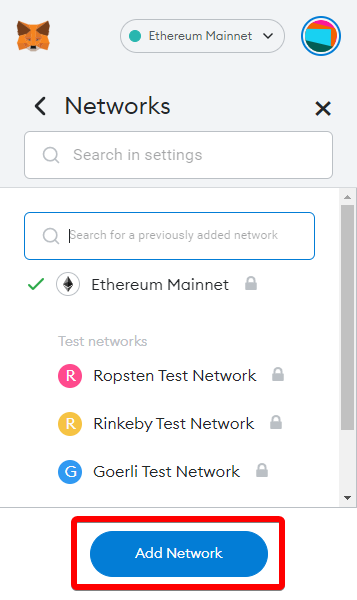
Add network (MetaMask)
5. You will be taken to a new screen. This is the most important step, as this is where you will add information to connect to the Polygon network.
Enter the following new information and press Save:
Network Name: Polygon
New RPC URL (choose one of the following):
Chain ID: 137
Symbol: MATIC
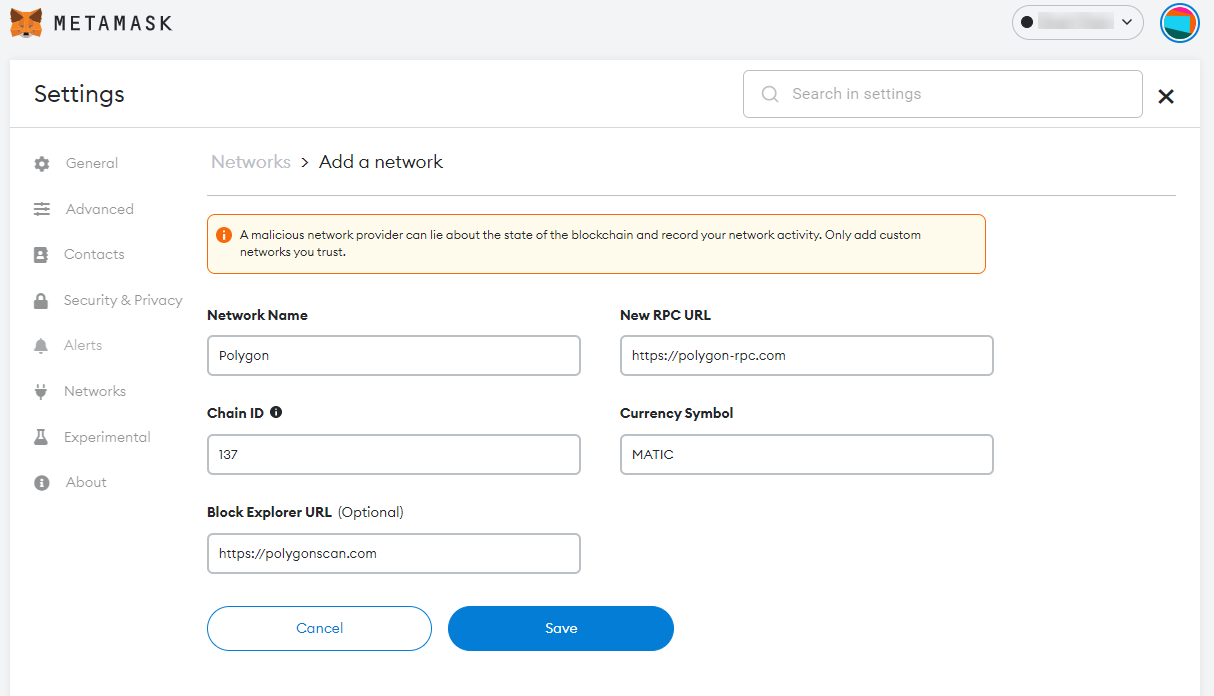
Network Information (MetaMask)
6. After adding this information, you will be taken back to the wallet screen. There are two signs that the Polygon network has been added to your MetaMask wallet. This is confirmed by the two red boxes shown in the screenshot below. The first box above shows the MATIC token standard, and the bottom right says "Polygon was added successfully".
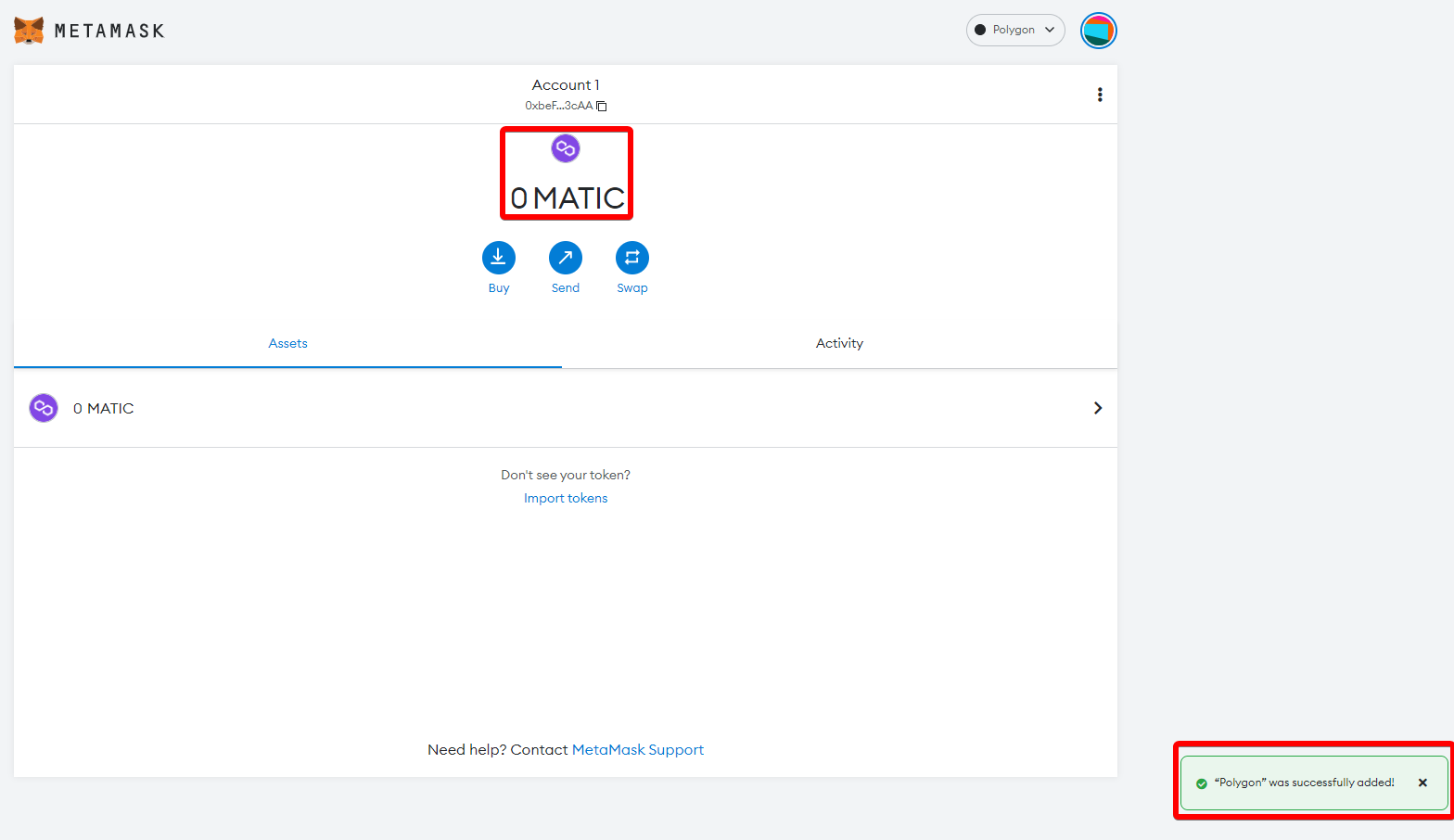
Successful Confirmation (MetaMask)
7. To deposit MATIC into your wallet, you need to click Get your wallet address. You can then send MATIC to your wallet.